
 USD
USD EUR
EUR GBP
GBP CAD
CAD AUD
AUD HKD
HKD JPY
JPY KRW
KRW SGD
SGD NZD
NZD THB
THB TWD
TWD English
 日本語
日本語 한국어
한국어 Français
 Español
 Português
 Nederlands
 繁體中文
繁體中文
By DIGIBox TV Box | 21 June 2024 | 0 Comments
How to Connect iPhone to Mini Projector Without HDMI?
With advancements in technology, sharing content from your iPhone on a larger screen is easier than ever. Whether you're preparing for a presentation, watching a movie, or sharing photos with friends, connecting your iPhone to a mini projector can enhance your viewing experience. But what if your projector doesn't have an HDMI port? Don't worry! There are several ways to connect your iPhone to a mini projector without HDMI. Here's a comprehensive guide to help you get started.
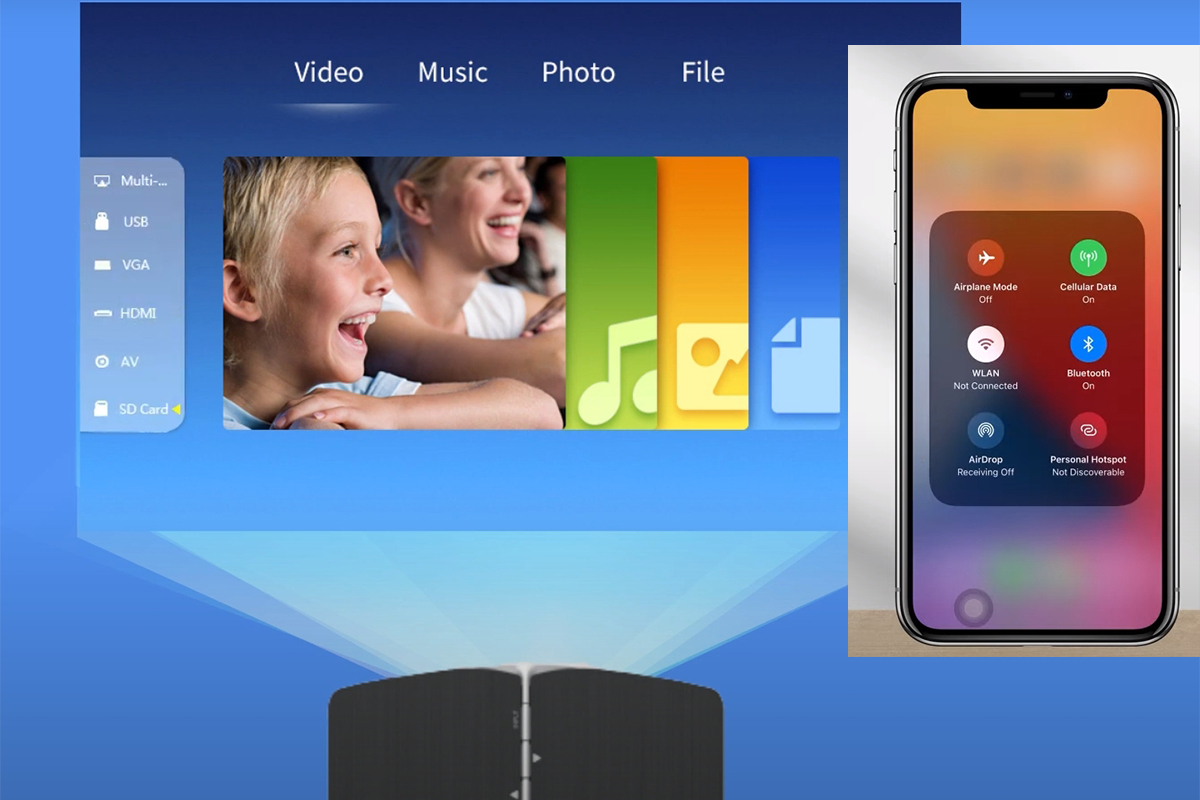
1. Using Apple AirPlay
Requirements:
A mini projector with AirPlay support or an Apple TV connected to the projector.
Steps:
Set Up Apple TV or AirPlay-Enabled Projector: Connect your Apple TV to the projector using an available connection method (e.g., VGA, DVI, or composite video cables).
Connect to Wi-Fi: Ensure both your iPhone and the Apple TV/projector are connected to the same Wi-Fi network.
Enable AirPlay on iPhone: Swipe down from the top-right corner of your iPhone screen to open the Control Center. Tap on "Screen Mirroring" and select your Apple TV or AirPlay-enabled projector.
Start Mirroring: Your iPhone screen should now be mirrored on the projector. Open the app or media you want to display and enjoy!
2. Using a Lightning to VGA Adapter
Requirements:
A Lightning to VGA adapter.
A VGA cable.
Steps:
Connect the Adapter to Your iPhone: Plug the Lightning to VGA adapter into your iPhone's Lightning port.
Connect the VGA Cable: Connect one end of the VGA cable to the adapter and the other end to the projector's VGA input.
Switch to VGA Input on Projector: Use the projector’s menu or remote to select the VGA input source.
Display Your Content: Your iPhone screen should be mirrored on the pocket projector. Open any app or media you want to display.
3. Using a Lightning to AV Adapter
Requirements:
A Lightning to AV adapter (Lightning to Composite AV or Lightning to Component AV, depending on your projector's available ports).
Appropriate AV cables (Composite or Component).
Steps:
Connect the Adapter to Your iPhone: Plug the Lightning to AV adapter into your iPhone's Lightning port.
Connect the AV Cables: Connect the AV cables to the adapter and the corresponding input ports on the projector.
Select AV Input on Projector: Use the projector’s menu or remote to select the AV input source.
Start Displaying Content: Your iPhone screen should now appear on the projector. Open any app or media to display.
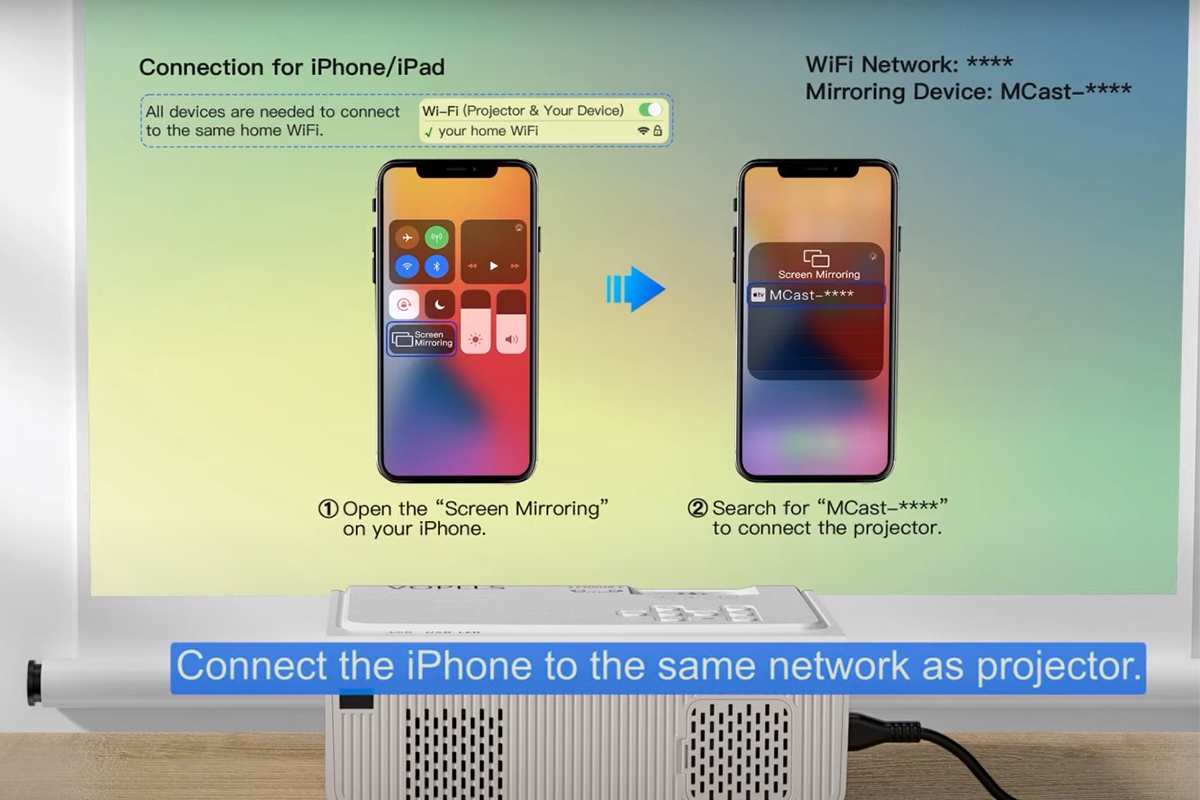
4. Using Wireless Dongles
Requirements:
A wireless dongle (such as Chromecast, Roku, or a similar device).
A Wi-Fi network.
Steps:
Set Up the Wireless Dongle: Connect the wireless dongle to the projector using available ports (e.g., HDMI with an HDMI-to-VGA adapter if needed).
Connect to Wi-Fi: Ensure both your iPhone and the wireless dongle are connected to the same Wi-Fi network.
Use Casting or Mirroring: Depending on the dongle, you may need to download a specific app. For Chromecast, open the Google Home app; for Roku, use the Roku app. Follow the on-screen instructions to mirror your iPhone screen.
Display Your Content: Your iPhone screen should now be mirrored on the projector. Open the desired app or media.
Final Tips
Check Compatibility: Ensure your DIGIBox mini projector is compatible with the method you choose.
Keep Devices Charged: Mirroring and streaming can drain your iPhone battery quickly, so keep it charged or connected to a power source.
Update Software: Ensure your iPhone and any connected devices (Apple TV, wireless dongles) have the latest software updates for optimal performance.
Connecting your iPhone to a DIGIBox mini projector without HDMI is straightforward with the right tools and methods. By following these steps, you can enjoy a seamless viewing experience, no matter where you are. Happy projecting!
1. Using Apple AirPlay
Requirements:
A mini projector with AirPlay support or an Apple TV connected to the projector.
Steps:
Set Up Apple TV or AirPlay-Enabled Projector: Connect your Apple TV to the projector using an available connection method (e.g., VGA, DVI, or composite video cables).
Connect to Wi-Fi: Ensure both your iPhone and the Apple TV/projector are connected to the same Wi-Fi network.
Enable AirPlay on iPhone: Swipe down from the top-right corner of your iPhone screen to open the Control Center. Tap on "Screen Mirroring" and select your Apple TV or AirPlay-enabled projector.
Start Mirroring: Your iPhone screen should now be mirrored on the projector. Open the app or media you want to display and enjoy!
2. Using a Lightning to VGA Adapter
Requirements:
A Lightning to VGA adapter.
A VGA cable.
Steps:
Connect the Adapter to Your iPhone: Plug the Lightning to VGA adapter into your iPhone's Lightning port.
Connect the VGA Cable: Connect one end of the VGA cable to the adapter and the other end to the projector's VGA input.
Switch to VGA Input on Projector: Use the projector’s menu or remote to select the VGA input source.
Display Your Content: Your iPhone screen should be mirrored on the pocket projector. Open any app or media you want to display.
3. Using a Lightning to AV Adapter
Requirements:
A Lightning to AV adapter (Lightning to Composite AV or Lightning to Component AV, depending on your projector's available ports).
Appropriate AV cables (Composite or Component).
Steps:
Connect the Adapter to Your iPhone: Plug the Lightning to AV adapter into your iPhone's Lightning port.
Connect the AV Cables: Connect the AV cables to the adapter and the corresponding input ports on the projector.
Select AV Input on Projector: Use the projector’s menu or remote to select the AV input source.
Start Displaying Content: Your iPhone screen should now appear on the projector. Open any app or media to display.
4. Using Wireless Dongles
Requirements:
A wireless dongle (such as Chromecast, Roku, or a similar device).
A Wi-Fi network.
Steps:
Set Up the Wireless Dongle: Connect the wireless dongle to the projector using available ports (e.g., HDMI with an HDMI-to-VGA adapter if needed).
Connect to Wi-Fi: Ensure both your iPhone and the wireless dongle are connected to the same Wi-Fi network.
Use Casting or Mirroring: Depending on the dongle, you may need to download a specific app. For Chromecast, open the Google Home app; for Roku, use the Roku app. Follow the on-screen instructions to mirror your iPhone screen.
Display Your Content: Your iPhone screen should now be mirrored on the projector. Open the desired app or media.
Final Tips
Check Compatibility: Ensure your DIGIBox mini projector is compatible with the method you choose.
Keep Devices Charged: Mirroring and streaming can drain your iPhone battery quickly, so keep it charged or connected to a power source.
Update Software: Ensure your iPhone and any connected devices (Apple TV, wireless dongles) have the latest software updates for optimal performance.
Connecting your iPhone to a DIGIBox mini projector without HDMI is straightforward with the right tools and methods. By following these steps, you can enjoy a seamless viewing experience, no matter where you are. Happy projecting!